Common Use Cases
VL Chat supports a range of workflows across dataset exploration and curation:| Use Case | Description | Examples |
|---|---|---|
| Quality Assurance | Quickly identify and review quality issues. | ”Show me all blur issues from today’s production run” “Find outlier images in batch 12345” “Display mislabeled images above 90% confidence” |
| Dataset Curation | Organize and filter datasets for training. | ”Show me the most unique images from each cluster” “Find images labeled as cats that don’t have the reviewed tag” “Display images with low uniqueness scores” |
| Research and Analysis | Explore dataset composition and patterns. | ”Show me the largest clusters” “Find images with the most labels” “Display images that appear in multiple clusters” |
How to Use VL Chat
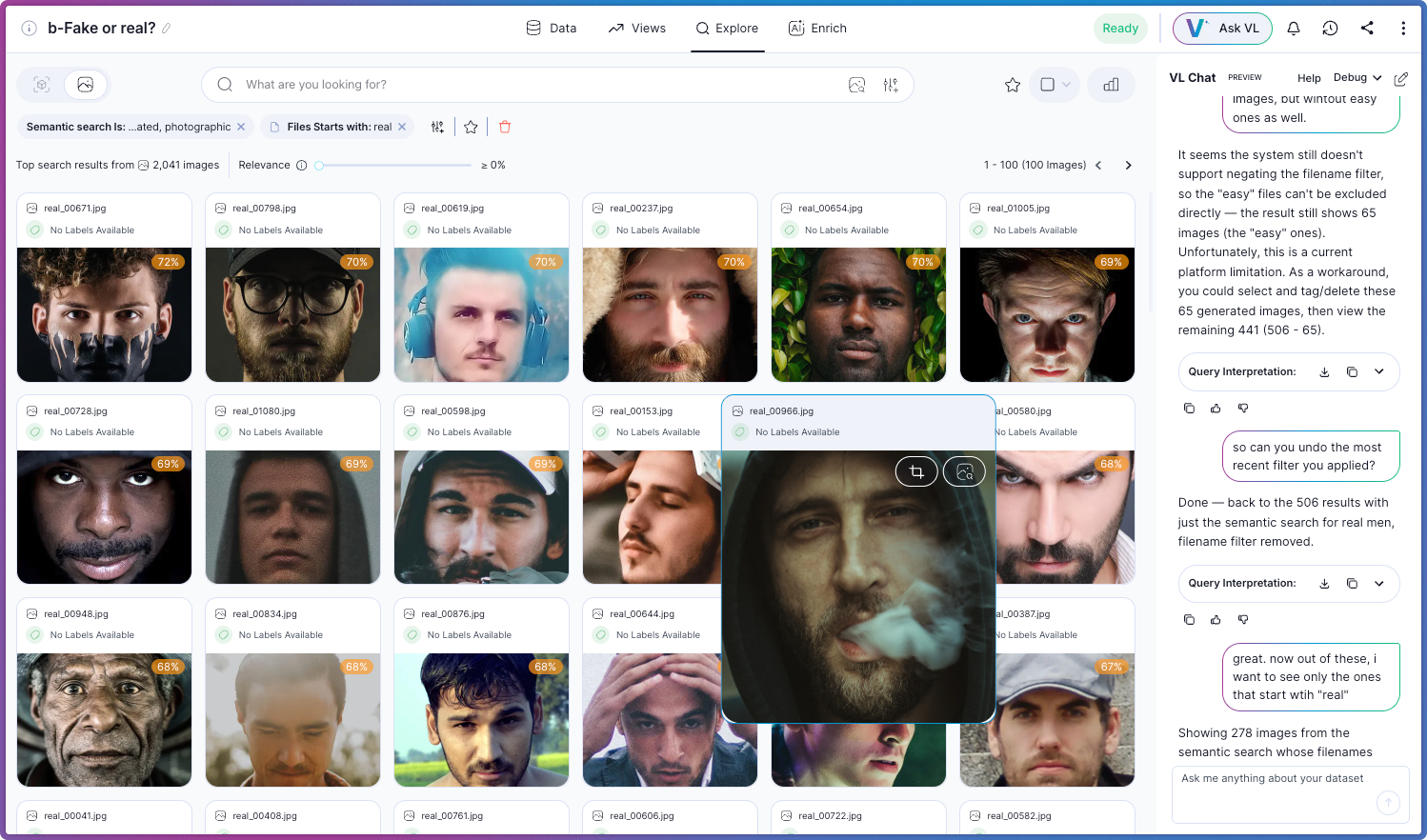
To access VL Chat, open any dataset in Visual Layer and click in the top navigation bar. The chat interface appears as a panel on the right side of your screen, allowing you to explore while viewing your dataset.
Each dataset maintains its own conversation thread, which persists across sessions. To start a fresh conversation, click New Thread in the chat panel.
in the top navigation bar. The chat interface appears as a panel on the right side of your screen, allowing you to explore while viewing your dataset.
Each dataset maintains its own conversation thread, which persists across sessions. To start a fresh conversation, click New Thread in the chat panel.
Asking Questions
Type your question in natural language into the chat input field and press Enter. VL Chat processes your query and returns results along with an explanation of what it understood and what it found. Query capabilities depend on your dataset’s configuration. VL Chat can only search fields that exist in your data: datasets without annotations cannot filter by labels, and cluster-based queries require Similarity Clusters to be generated first. If you reference a field that isn’t configured, the system explains this and applies the filters it can. Example queries:- “Show me images with blur issues”
- “Find all images tagged as defective”
- “Display images from cluster 5”
- “Show me images with high uniqueness scores”
- “Find images labeled as cats”
Types of Queries You Can Ask
VL Chat understands queries about different aspects of your dataset:| Type | Description | Examples |
|---|---|---|
| Filter by Issues | Find images with specific quality issues detected by Visual Layer. | ”Show me blurry images” “Find all images with duplicates” “Display images that have outlier issues” “Show me images with mislabel issues above 80% confidence” |
| Filter by Labels | Search for specific labels or annotations in your dataset. | ”Show me images labeled as cats” “Find all images with car labels” “Display images labeled as defective” |
| Filter by Tags | Query images based on user-assigned tags. | ”Show me images tagged as urgent” “Find all images with the reviewed tag” “Display images tagged for training” |
| Filter by Custom Metadata | Query Custom Metadata fields directly if your dataset includes them. | ”Show me images with temperature above 30” “Find images from Station A” “Display images where batch number is 12345” |
| Navigate Clusters | Explore Similarity Clusters in your dataset. | ”Show me cluster 5” “Display the largest cluster” “Find clusters with more than 100 images” |
| Combine Multiple Criteria | Build complex queries by combining different filter types. | ”Show me blurry images from cluster 3” “Find images labeled as cats with high uniqueness scores” “Display images tagged as urgent that also have blur issues” |
Tips for Effective Queries
Use these guidelines to get accurate, relevant results from VL Chat:| Rule | Explanation | Good | Less Clear |
|---|---|---|---|
| Be Specific About Filter Types | When referencing labels, tags, or custom fields, use clear terminology. | ”Show me images labeled as defective" | "Show me defective images” (could refer to labels, tags, or quality issues) |
| Use Exact Field Names | For custom metadata, use the exact field name as it appears in your dataset. | ”Show me images where Station equals A" | "Show me images from station A” (if the field is named “StationID”) |
| Specify Thresholds Explicitly | When filtering by numeric values or confidence scores, include specific thresholds. | ”Show me blur issues above 85% confidence" | "Show me images with high blur” (what threshold defines “high”?) |
| Build Complex Queries Iteratively | Start with a simple query and refine it through follow-up questions. | ”Show me images with blur” “Now filter to cluster 5” “Show only the ones tagged as urgent" | "Show me blurry images from cluster 5 tagged as urgent” |
Understanding Responses
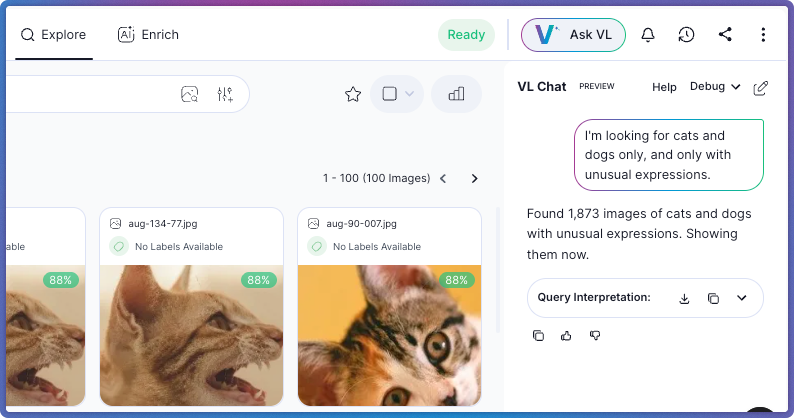
When you ask a question, VL Chat provides:- Interpretation summary: A clear statement of what the system understood from your query.
- Validation feedback: Information about which parts of your query were applied successfully and which weren’t available.
- Visual results: The actual images or objects matching your criteria.
- Alternative interpretations: Suggestions if your query was ambiguous or if certain fields aren’t available.
Multi-Turn Conversations
VL Chat maintains context across multiple messages, allowing you to refine your queries progressively: You: “Show me images with blur” VL Chat: Returns 156 blurry images You: “Now show only the ones from last week” VL Chat: Filters the previous results to show 23 images from last week You: “Which cluster has the most of these?” VL Chat: Analyzes the filtered results and highlights cluster 12 Each follow-up question builds on the previous context, making exploration feel natural and conversational.